

Views: 0 Author: Site Editor Publish Time: 2025-12-15 Origin: Site


Many CNC jobs fail before machining even begins. Small CAD mistakes can create delays. They can also raise costs or damage accuracy.
Clean geometry and correct tolerances help avoid these issues. Good preparation keeps toolpaths stable and reduces rework. This matters even more in CNC mold projects where precision is critical.
In this post, you'll learn how to prepare your CAD model the right way. You'll also see how simple steps can improve speed and final quality.
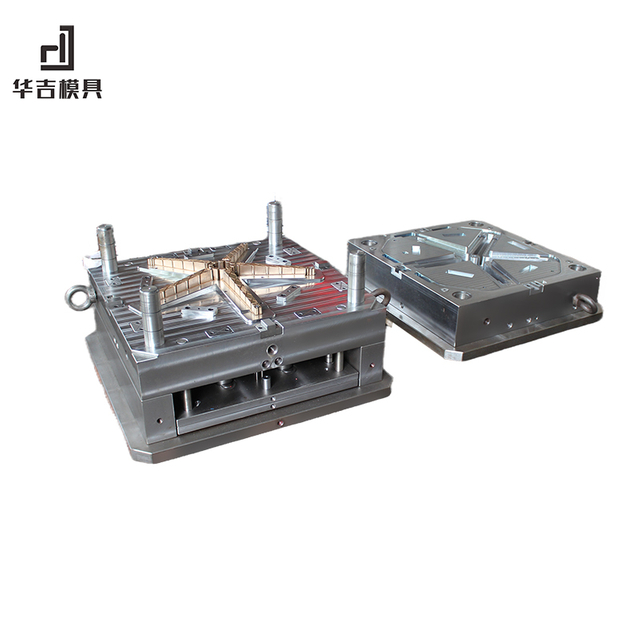
Preparing a CAD model for CNC milling begins with data that is complete, solid, and stable. Machines follow every line exactly, so even small issues can cause toolpath errors, wasted material, or unexpected delays. When a model loads cleanly into CAM software, programmers can generate accurate paths faster and avoid constant geometry repair. Each step below helps remove uncertainty and ensures the file behaves predictably once machining begins.
A CNC machine cannot interpret open edges or hollow surfaces, so the model must remain a fully enclosed solid. Any gap, however small, forces CAM software to guess the intended shape, creating broken or unstable toolpaths. Solid bodies allow the software to calculate cutter movement smoothly, which improves surface finish and reduces chatter during milling. It also prevents tool dips in unwanted areas and keeps the part true to its design.
Different file formats behave differently once imported into a CAM environment. STEP files preserve curved features, surface continuity, and solid structure far better than most alternatives. IGES files often arrive fragmented and require stitching, which slows processing and increases the risk of missing faces. STL files cause even more problems, since they convert smooth surfaces into triangles and drop tolerance data entirely. This makes STLs unsuitable for precision milling, especially when the part has tight radii or complex contours.
Format | Strengths | Weaknesses | CNC Suitability |
STEP | Preserves solids and curves | Larger file size | ★★★★★ |
IGES | Broad compatibility | Surface gaps, repairs | ★★★☆☆ |
STL | Easy to view or print | Faceted, no tolerances | ★☆☆☆☆ |
One of the most common CNC errors appears when a file uses inches but the shop imports it in millimeters. This creates a dramatic 25.4× size jump, producing parts that are completely wrong. To prevent this, confirm the units before exporting, and add the unit system to the file name so no one misinterprets it later. A quick re-import check also helps catch scaling errors before production begins.
Duplicate vectors and stacked lines make the cutter travel over the same area twice, wasting time and possibly damaging the surface. Hidden bodies or leftover sketches create clutter that slows CAM processing and confuses programmers. Removing extra nodes, merging overlapping curves, and simplifying complex splines can reduce calculation time noticeably. Cleaner geometry also reduces the risk of random tool jumps or unwanted movements during milling.
The part’s orientation affects how it gets held, cut, and measured. When the model aligns to a clear datum, fixture design becomes easier and more accurate. A correct origin also helps programmers avoid flipping or rotating the part inside CAM software, which can introduce mistakes. Setting the coordinate system early keeps the entire workflow consistent, from quoting to roughing to final inspection.
Mold tooling requires surfaces that blend smoothly and maintain continuous curvature. Any surface gap, incorrect file format, or faceted region can ruin a cavity’s smoothness and force expensive rework. High-precision areas, including shut-offs and core-cavity transitions, fail easily when the imported model is not watertight. By following the steps above, designers protect tooling accuracy and keep CNC machining predictable for mold production.
Once a CAD model is finished, the next step is preparing it for CAM software. This stage decides how accurately the machine will cut the part, so any mistake inside the file can slow programming or cause the toolpath to fail. CAM reads every edge and surface directly, meaning the model must stay clean, consistent, and fully interpretable. When we reduce unnecessary complexity and verify the exported data, toolpath creation becomes faster and more predictable.
Complex files slow toolpath generation and create unnecessary load on the CAM system. Extra bodies, leftover sketches, and unused construction geometry often remain hidden in the design tree. These elements confuse the software and increase processing time. Removing them gives the model a clean structure that imports smoothly. It also reduces the number of selectable faces, making the programming workflow more efficient. Designers often delete micro-fillets or decorative cuts as well, since they add no functional value but require dense toolpaths.
Key cleanup actions include:
● Delete unused reference planes or temporary bodies
● Remove internal sketches that no longer control features
● Suppress mirrored sets that were replaced by final geometry
● Simplify complex splines into arcs when possible
Machinists rely on clear feature definitions to program accurate toolpaths. If chamfers, threads, or tolerances are unclear, they must contact the designer for clarification. This slows production and increases the risk of incorrect assumptions. Explicit tolerances tell the machinist where precision matters most, like bores, sealing surfaces, or datums. GD&T annotations also communicate functional intent, so the part performs correctly once assembled.
A structured callout table helps communicate critical features:
Feature Type | What CAM Needs | Why It Matters |
Chamfers | Angle + width | Prevents sharp edges and ensures consistent breaks |
Threads | Size + depth | Avoids tool breakage and mismatched fasteners |
Tolerances | Limits + datum reference | Guides machinists toward critical fits |
Exporting a CAD file is only the first step. Problems often appear after the file is opened in CAM, so designers use a “round-trip” check to confirm integrity. The process is simple: export the model, re-import it into the CAD system, and inspect the geometry. If faces disappear or surfaces flip direction, the export settings need adjustment. This check catches more than 90% of translation errors before machining begins. It protects against issues like open edges, missing patches, and unit mismatches.
Common translation failures to look for:
● Gaps between surfaces
● Unexpected faceting around curved areas
● Incorrect model scale after re-import
● Missing threads or chamfers
Mold machining pushes CAM systems harder than most other workflows. Tools must follow complex surfaces, often using 3-axis, 4-axis, or even full 5-axis motion. For this to work, the CAD model needs smooth, continuous surface patches. When surfaces are broken into many small pieces, CAM creates uneven toolpaths that leave scallop marks. This increases polishing time and shortens tool life due to sudden direction changes.
Designers prepare mold data using:
● Larger surface patches that maintain continuity
● Simplified curvature transitions to avoid stair-stepping
● Clean edges around shut-offs and core-cavity splits
● Uniform fillets so the cutter moves smoothly across surfaces
Multi-axis programs rely heavily on how clean the surfaces appear to the CAM engine. If the data stays stable and continuous, the cutter maintains steady engagement, which improves finish quality and reduces wear.
Selecting the correct file format is one of the most important parts of preparing a CAD model for CNC milling. Each format carries geometry in a different way, and the CAM system reads that data exactly as it appears. A wrong choice slows toolpath creation, increases repair work, or distorts critical surfaces. Export settings also influence how smooth curves appear, how solids translate, and how easily the machinist can interpret the design. When designers understand how each format behaves, they can deliver cleaner files that produce stronger results.
STEP is the industry’s most reliable neutral format for CNC machining. It preserves solid bodies, assemblies, and PMI data in a stable structure that nearly every CAM system can read. AP242, the recommended version, supports advanced features like materials, colors, and GD&T. This makes it ideal for parts that contain complex curvature, sealed volumes, or multi-part relationships. STEP files export smooth surfaces rather than fragmented patches, so the cutter follows clean paths. It keeps geometry watertight, which helps avoid the surface gaps that often appear in older formats.
IGES files still appear in many workflows, especially where older CAD systems are used. They work well for simple surface models, flat designs, or basic prismatic shapes. However, they often fragment solid bodies into disconnected surfaces, which forces the CAM system to repair gaps. This creates extra work for programmers and may leave unstitched edges that interfere with toolpath creation. Precision milling becomes risky when the model arrives as loose surfaces, since tiny misalignments translate directly into machining defects.
STL stores geometry as a triangle mesh, so it cannot preserve smooth curvature. Every curve becomes a series of flat facets, and the precision depends only on the mesh density. CNC machines need accurate surface definitions, especially in areas where cutters trace long 3D contours. STL also drops tolerances, units, and material information, which creates more problems when programming toolpaths. Because of these limits, STL should not be used for mold cavities or high-accuracy parts.
Major drawbacks of STL:
● Faceted surfaces degrade finish quality
● No units, tolerances, or solid structure
● Difficult to repair once exported
● Causes inconsistent step-over patterns in 3D milling
DXF is a strong choice for 2D CNC operations. It works well for outlines, pockets, engraving paths, and flat plate cutting. The format stores lines, arcs, and splines in a simple planar structure that CAM software can read quickly. It does not support 3D solids, but it excels at precise 2D geometry. When the part requires face milling, laser cutting, or basic contour routing, DXF offers a fast and lightweight option.
A quick comparison of format suitability:
Format | CNC Use Case | Strength | Limitation |
STEP | 3D milling, multi-axis | Best accuracy and solids | Larger files |
IGES | Simple surfaces | Broad compatibility | Fragmented geometry |
STL | Visualization only | Easy to export | Faceted, no tolerances |
DXF | 2D machining | Clean outlines | No 3D support |
Tip: By choosing formats based on the operation and exporting using proper settings, designers help the CAM system interpret the model correctly, reduce cleanup work, and maintain accuracy throughout machining.
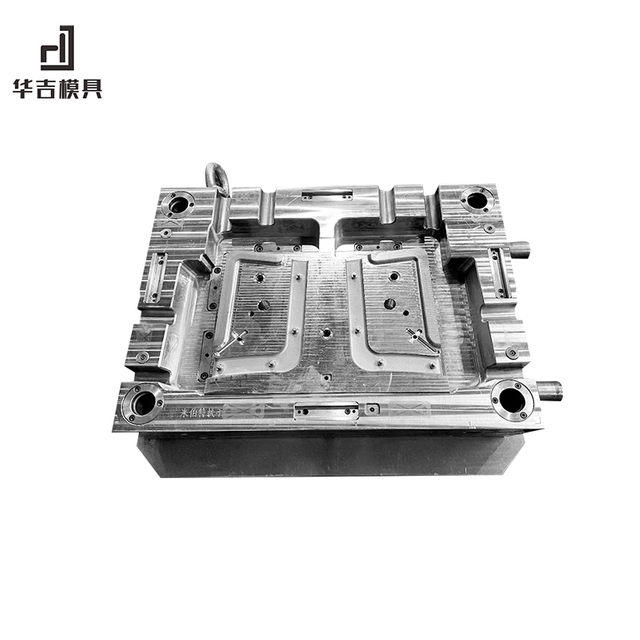
Before a CAD model reaches the CAM stage, every surface, edge, and curve must be checked for accuracy. CNC machines read the file exactly as it is, so hidden flaws easily turn into broken toolpaths or damaged parts. Proper cleanup removes noise from the model and gives the cutter a clear path. Validation adds another layer of protection, ensuring nothing was lost or distorted during translation. These steps help the machinist trust the file and avoid unnecessary troubleshooting.
Overlapping vectors cause a CNC tool to cut the same area twice. This creates heat buildup, tool wear, and poor surface quality. Hidden bodies or leftover sketches also confuse CAM software, since it tries to interpret every visible and invisible element. Removing them keeps the model light and easier to process. Designers often find duplicate lines from earlier revisions, so deleting these helps avoid stacked toolpaths. A clean feature tree also reduces the number of selectable edges, which speeds programming.
Surface gaps appear frequently when exporting to formats like IGES. The file may split a solid into surface patches, leaving tiny openings between them. CAM software cannot generate a reliable toolpath across broken geometry, so healing tools become essential. Most CAD programs include “repair,” “healing,” or “sewing” commands that stitch surfaces together. This converts loose surfaces back into watertight solids. It also fixes issues where surfaces flip direction or leave sharp seams.
Problem | Cause | Effect |
Missing faces | Surface-only export | Open geometry |
Gaps between surfaces | Tolerance mismatch | Unmachinable regions |
Twisted patches | Kernel differences | Irregular tool motion |
Healing these problems ensures the part behaves like a solid instead of a collection of patches.
Different view modes reveal different types of issues. Shaded mode shows the overall shape, but it may hide tiny cracks. Wireframe makes gaps easier to spot, since it exposes intersections between edges. Draft analysis helps evaluate slope transitions and reveals abrupt angle changes that may cause tool chatter. Switching between modes gives a full picture of the model’s condition. It also helps identify unintended fillets or leftover edges from earlier design steps.
Mold surfaces demand extreme precision because any irregularity transfers directly to the molded part. A tolerance near 0.5 µm is recommended for exporting smooth surfaces, especially when working on core and cavity shapes. Higher tolerance values introduce small deviations that appear as subtle ripples after machining. These ripples require extra polishing time, which increases production cost. Setting consistent scale also prevents CAM misinterpretation, since some formats drop unit information.
Important surface settings:
Setting | Recommendation | Reason |
Export tolerance | 0.5 µm | Smooth mold finish |
Unit scale | Explicitly defined | Prevents conversion errors |
Chord height | Low for curved surfaces | Protects fine detail |
Angle tolerance | Tightened for multi-axis work | Improves contour accuracy |
By validating the geometry through multiple checks and tuning precision settings carefully, designers protect the model from hidden flaws and give the machinist a clean, dependable dataset for CNC milling.
Successful CNC milling depends not only on a clean CAD model, but also on clear communication between the designer and the machining team. Machinists rely on accurate data, precise measurements, and complete manufacturing notes to program the toolpaths correctly. When designers share information early, it prevents confusion, reduces revision cycles, and shortens lead times. These steps help both sides work from the same expectations and avoid costly production delays.
Even the best 3D model needs a supporting 2D drawing. Machinists use it to confirm dimensions, check tolerances, and identify critical fits. A PDF drawing paired with a STEP file has become the industry standard because it combines clarity and compatibility. The drawing highlights what matters most, including hole sizes, surface requirements, and datum references. It also reduces the number of questions machinists must ask before programming begins, which keeps production moving smoothly.
Material selection affects tool choice, feed rates, and machining strategies. Harder materials like stainless steel require slower cutting speeds, while softer alloys may need different support to prevent vibration. Surface finishes such as anodizing, polishing, or applying mold texture also influence machining allowances. If these details arrive late, the part may not meet final specifications. Sharing material grade, finish type, and any heat treatment early helps the machinist prepare the right program and avoid unexpected adjustments.
Item | What the Shop Needs | Why It Helps |
Material | Grade + hardness | Choose proper tools |
Finish | Type + thickness | Set machining allowance |
Post-processing | Heat treat, texture | Adjust workflow |
Mold components demand extremely tight control over geometry and material behavior. Tool steel hardness affects cutter wear, while shrinkage rates determine final cavity size. Venting limits, draft angles, and shut-off conditions also require careful planning. Early DFM conversations help identify risk areas, especially in deep cavities or areas that need EDM after CNC. When both teams discuss these constraints early, the mold design becomes easier to machine, easier to polish, and more reliable in production.
Clean CAD models create accurate toolpaths and better parts. Good preparation reduces cost, prevents delays, and improves precision. It matters even more for CNC mold projects where smooth geometry protects final quality. Huajimould supports this process by offering reliable products and services that help teams achieve stronger machining results.
A: Start by ensuring the model is watertight and free of gaps so the CNC mold workflow stays accurate.
A: STEP files preserve clean geometry, which helps CNC mold machining maintain smooth surfaces.
A: Confirm your units match the shop’s settings to keep the CNC mold dimensions correct.
A: Sharp corners, thin walls, and deep cavities often complicate CNC mold toolpaths.
A: It helps prevent tolerance errors and ensures the CNC mold design matches machining limits.


